
Building a slide deck used to eat up an entire evening – picking a template, wrestling with alignment, hunting for icons that don’t look like clip art. The gamma ai presentation maker changes that math entirely. Instead of designing slide by slide, you describe what you need in a sentence or paste in existing content, and the AI handles structure, layout, and visuals in one pass.
This guide walks through the exact workflow to go from a blank page to a polished, shareable presentation in about 10 minutes – in other words, exactly how to make a presentation using ai in minutes – plus the benefits, real trade-offs, and how to judge whether Gamma is the right fit before you commit any time to it. If you’d rather skip straight to getting access, you can check current plan options on the Gamma AI service page at Premium Tools Hub.
Key Takeaways
● Gamma turns a prompt, pasted text, or an uploaded document into a full presentation in minutes, not hours.
● The gamma ai free plan works as a one-time credit allowance rather than an unlimited monthly tier – plan accordingly if you’re testing it before upgrading.
● The card-based format auto-resizes to content, so you skip manual text-overflow fixes.
● A realistic first-draft deck takes about 10 minutes; polishing it for something important takes longer.
● It’s strong for speed and content generation, but PowerPoint exports sometimes need a manual cleanup pass.
● Always fact-check AI-generated content before presenting it, especially numbers, dates, and citations.
● Pairing Gamma with a couple of adjacent AI tools – for research, writing, or graphics – noticeably improves the final output.
🔥 LinkedIn Premium Business Plan 12 Months
Original Price ₹23,000 • Get it ₹8XXX
🤖 Gemini AI Advanced Pro Plan
Original Price ₹19,500 • Get it ₹8XXX
💼 LinkedIn Sales Navigator Core
Original Price ₹80,000 • Get it ₹2XXXX
🎨 Canva Pro Lifetime Access
Original Price ₹3,999 • Get it ₹4XX
📚 Coursera Plus Annual Plan
Original Price ₹33,000 • Get it ₹2XXX
✨ Adobe Creative Cloud All Apps
Original Price ₹59,000 • Get it ₹4XXX
What Is Gamma AI, Exactly?
Gamma is a browser-based platform that generates presentations, documents, and simple web pages from a text prompt, an outline, or an uploaded file. At its core, the gamma ai presentation maker works differently from traditional slide software: rather than fixed 16:9 slides, it uses an expandable “card” format – each card grows or shrinks to fit whatever content you drop into it, so you’re not fighting text overflow the way you would in traditional slide software.
Under the hood, Gamma combines a large language model (for writing and structuring content) with a design engine (for layout, spacing, and visual hierarchy). That combination is what answers the long-tail question people search for constantly – how does gamma ai work for presentations – it separates “what to say” from “how it should look,” and automates both simultaneously instead of asking you to do one after the other.
This is also why Gamma tends to pair well with other AI tools rather than replace them outright – and it’s another piece of the answer to how does gamma ai work for presentations at a practical level. Plenty of users draft their raw talking points in an assistant like ChatGPT Plus or Gemini Advanced first, then paste that draft into Gamma purely for the design and structuring step. Used this way, Gamma becomes the “formatting layer” on top of whatever content tool you already rely on.
Benefits of Using Gamma AI for Presentations
Before getting into the step-by-step, it’s worth being clear on exactly what you gain by switching to an AI-first workflow instead of building a deck manually:

● Speed. A full first draft – outline, copy, and design – comes together in minutes instead of hours, freeing up time for the parts that actually need human judgment.
● No design skills required. The layout engine handles spacing, alignment, and visual hierarchy automatically, so you’re not manually nudging text boxes into place.
● Content flexibility. You can start from a blank prompt, pasted notes, or an existing Word document – the tool adapts rather than forcing one input format.
● Consistent visual polish. Every card in a deck follows the same design system, so you avoid the mismatched-fonts, mismatched-spacing look that’s common in decks built slide-by-slide over multiple sittings.
● Multi-format output. The same content can become a presentation, a scrollable web page, or a document – useful when you need to repurpose one piece of content for different audiences.
● Built-in iteration. You can re-prompt the AI to revise a specific card’s tone or content without rebuilding the whole deck manually.
Step-by-Step: How to Make a Presentation Using AI in Minutes
Here’s the actual workflow, broken into steps that realistically fit inside a 10-minute window.
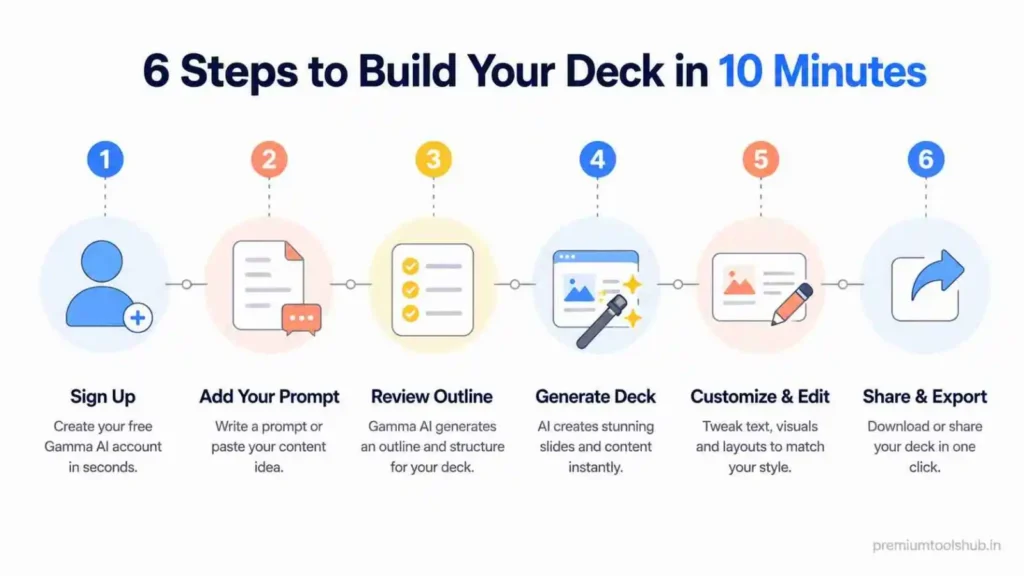
| Step | What You Do | Time |
| 1. Sign up | Create an account with email or Google | 1 min |
| 2. Choose input method | Prompt, paste text, or import a file | 1 min |
| 3. Generate outline | AI drafts a card-by-card structure | 1–2 min |
| 4. Auto-generate deck | AI writes copy and applies a theme | 2–3 min |
| 5. Edit & refine | Adjust wording, swap images, reorder cards | 3–4 min |
| 6. Export or share | Download as PPTX/PDF or share a live link | 1 min |
Step 1: Sign Up and Pick a Starting Point
After creating your account, Gamma asks how you want to start: from a prompt, from pasted text, or by importing a file. This is where the workflow branches, depending on what you already have. If you’re comparing subscription options before committing, it’s worth reviewing plan tiers on the Gamma service page so you know which features are gated behind a paid plan before you start building.
Step 2: Turn a Prompt or Document Into an Outline
If you’re starting from scratch, type a one-line prompt describing your topic and audience – for example, “a 10-slide pitch deck for a campus sustainability project aimed at college administrators.” Gamma turns that into a card-by-card outline you can edit before generation even begins.
If you already have written material, this is also the answer to how to convert word document into presentation with AI: upload the .docx (or paste the text directly), and Gamma reads the structure – headings become card titles, paragraphs get condensed into bullet-ready copy – and proposes an outline based on it. The same import path works for how to create PPT from text using AI: paste raw notes, meeting minutes, or an essay, and let the AI decide where slide breaks should go.
If your source material is scattered across multiple notes or documents, organizing it first in a workspace tool like Notion before you paste it into Gamma tends to produce a cleaner outline-a single well-structured document converts more reliably than several loose fragments.
Step 3: Let the AI Generate the Full Deck
Once the outline looks right, generation fills in supporting copy, chooses a visual theme, and pulls in relevant images or icons automatically. This single step is what actually delivers on the 10-minute promise – it’s doing simultaneously what a human would otherwise do slide by slide.
Step 4: Edit for Accuracy and Voice
AI-generated first drafts are a starting point, not a final version. Spend the bulk of your remaining time here:
● Fact-check any numbers, dates, or claims the AI generated
● Rewrite sections that sound generic so they match your actual voice
● Swap stock images for ones specific to your project, if you have them
● Trim any card that repeats a point made elsewhere
If Gamma’s built-in image generator doesn’t match the visual style you need – say, a specific brand illustration style or a custom graphic – dropping in assets built separately in Adobe Creative Cloud is a common workaround for anyone who needs tighter visual control than an auto-generated deck provides.
Step 5: Export or Present Directly
Gamma decks can be exported to PPTX, PDF, or PNG, or presented straight from the browser as a shareable link – useful if you want viewers to scroll through asynchronously rather than sit through a live talk. If you’re exporting to PowerPoint for a client or professor who expects a traditional file, do a quick pass afterward: because Gamma’s card format isn’t a fixed 16:9 slide, exports occasionally shift spacing or turn some text into flattened images, so a two-minute cleanup before you present is worth the insurance.
🔥 LinkedIn Premium Business Plan 12 Months
Original Price ₹23,000 • Get it ₹8XXX
🤖 Gemini AI Advanced Pro Plan
Original Price ₹19,500 • Get it ₹8XXX
💼 LinkedIn Sales Navigator Core
Original Price ₹80,000 • Get it ₹2XXXX
🎨 Canva Pro Lifetime Access
Original Price ₹3,999 • Get it ₹4XX
📚 Coursera Plus Annual Plan
Original Price ₹33,000 • Get it ₹2XXX
✨ Adobe Creative Cloud All Apps
Original Price ₹59,000 • Get it ₹4XXX
Common Mistakes to Avoid When Using an AI Presentation Maker
Even with a tool doing most of the heavy lifting, a few habits separate a genuinely usable deck from one that visibly looks AI-generated:
- Accepting the first draft as final. The generation step is a starting point. Skipping the edit pass is the single most common reason AI decks look generic.
- Leaving placeholder-sounding stock images in place. If an image doesn’t add specific meaning to that card, swap it or remove it.
- Overloading a single card with too many ideas. Because cards auto-expand, it’s tempting to keep adding content to one card instead of splitting it into two – resist that; a deck with 14 focused cards reads better than 8 overcrowded ones.
- Not verifying AI-generated statistics. Treat every number the AI produces as unverified until you’ve checked it yourself.
- Ignoring how the export will look on the destination device. A deck that looks great as a browser link can render differently once exported to .pptx – always preview the exported file before an important send.
Gamma App Login: Accessing Your Account
If you’re specifically looking for the gamma app login page rather than signup, you’ll find it directly at Gamma’s sign-in page, accessible from the top-right of gamma.app. You can log in with an email/password combination or through Google single sign-on. Gamma also has mobile apps for iOS and Android, and login there syncs to the same workspace as your browser account – useful if you want to review a deck on your phone before a meeting.
🔥 LinkedIn Premium Business Plan 12 Months
Original Price ₹23,000 • Get it ₹8XXX
🤖 Gemini AI Advanced Pro Plan
Original Price ₹19,500 • Get it ₹8XXX
💼 LinkedIn Sales Navigator Core
Original Price ₹80,000 • Get it ₹2XXXX
🎨 Canva Pro Lifetime Access
Original Price ₹3,999 • Get it ₹4XX
📚 Coursera Plus Annual Plan
Original Price ₹33,000 • Get it ₹2XXX
✨ Adobe Creative Cloud All Apps
Original Price ₹59,000 • Get it ₹4XXX
Is Gamma AI Good for College Presentations?
For a college presentation, Gamma is genuinely well suited to the format most students actually need: a deck that clearly communicates an argument or project without requiring design skills. It handles the two things students typically struggle with under deadline pressure – writing concise supporting text and choosing a layout that doesn’t look like a default PowerPoint theme.

Where you should stay cautious:
● Fact-check everything. AI-generated content can include plausible-sounding but incorrect details, especially statistics or citations. Never submit an AI-generated deck without verifying every factual claim yourself.
● Check your institution’s AI-use policy. Some courses require disclosure of AI tool use; a few prohibit it outright for graded work. Confirm before you rely on it for anything submitted for a grade.
● Keep your own voice. For presentations that are evaluated on your understanding of the material (not just the slides), rewrite the AI’s phrasing so it reflects your own explanation, not a generic AI tone.
Used this way – as an accelerator for structure and design, not a substitute for your own understanding – it’s a strong fit for coursework, seminar presentations, and student club projects. Many students also lean on an AI writing assistant like ChatGPT Plus to help organize research notes before they ever open Gamma, which speeds up Step 2 of the workflow above considerably.
Gamma AI for Business Presentations
For business use, Gamma’s strengths show up most clearly in three areas: pitch decks, internal reports, and sales-enablement content, all of which benefit from being able to prototype an idea visually in minutes and iterate quickly with a client or teammate watching live. Pro and above unlock custom branding – your fonts, colors, and logo – plus analytics that show how viewers engage with a shared deck, which is genuinely useful for sales teams tracking whether a prospect actually opened and scrolled through a proposal.

Two things worth planning around before you rely on Gamma for external, client-facing decks:
- PowerPoint export fidelity. Because Gamma’s native format is card-based rather than fixed-slide, exporting to .pptx can introduce layout shifts. Budget a short review pass before any external send.
- Data and content terms. Review Gamma’s terms of service around content usage before uploading anything containing sensitive business data, the same way you would with any cloud AI tool.
If your priority is turning an idea into something presentable in the shortest possible time, and you’re comfortable doing a light cleanup pass before an important send, Gamma is a strong default choice for most day-to-day business decks. Teams that already coordinate projects in Notion often find it natural to draft the deck outline there first, then move it into Gamma purely for the visual generation step.
Real-World Use Cases for Gamma AI
To make the workflow more concrete, here’s how the same six-step process plays out across a few common situations:
● A student finishing a seminar presentation the night before. They paste their essay draft directly into Gamma, let it generate a 10-card deck, then spend the remaining time fact-checking and rewriting a few cards in their own words before submission the next morning.
● A freelancer pitching a new client. They start from a one-line prompt describing the client’s industry and problem, generate a first draft, then swap in their own case-study screenshots and testimonials before exporting to PDF for the pitch email.
● A startup founder prepping an internal update. Instead of exporting anything, they share the Gamma web link directly with the team, letting people scroll through asynchronously – no live meeting required.
● A marketing manager repurposing a blog post. They paste the article text in, let Gamma restructure it into a social-friendly carousel-style deck, and export it as PNGs for social media instead of a traditional presentation.
How to Compare Gamma AI Against Other Presentation Tools
Rather than asking “which tool is best” in the abstract, it’s more useful to judge any AI presentation tool – Gamma included – against a consistent set of criteria based on your own priorities:
● Generation speed: How long does it take to go from a blank input to a usable first draft?
● Design quality out of the box: Does the default output look presentable without manual redesign, or does it need significant cleanup?
● Export fidelity: If you need a native PowerPoint file, does the export hold its layout, fonts, and spacing, or does it require fixing?
● Input flexibility: Can it start from a prompt, pasted text, and existing documents, or only one of those?
● Editing control: Once generated, how easily can you manually adjust wording, images, and layout?
● Branding options: Can you apply your own fonts, colors, and logo, and at what plan tier?
● Pricing model: Is it a flat monthly fee, or a credit-based system where heavy use costs more than the headline price suggests?
● Data handling: What do the terms of service say about how your uploaded content is used or retained?
Running any tool you’re evaluating through this checklist – instead of just comparing sticker prices – is what actually tells you whether it fits your workflow.
Tips to Get the Most Out of Gamma AI
A few small habits noticeably improve the quality of what you get out of the tool:
● Write a specific prompt, not a vague one. “A pitch deck for our new app” generates something generic. “A 10-card pitch deck for a B2B expense-tracking app, aimed at seed-stage investors, emphasizing our 40% month-over-month growth” generates something usable.
● Feed it structured input when you can. A document with clear headings converts to a cleaner outline than a wall of unformatted text.
● Regenerate individual cards instead of the whole deck. If one section misses the mark, re-prompt just that card rather than starting over.
● Keep a personal template or theme once you find one you like. Reusing a theme across decks builds visual consistency for anyone who sees multiple presentations from you over time.
● Always preview before sending. Whether it’s a live link or a PPTX export, view the final version exactly as your audience will see it before you hit send.
Frequently Asked Questions
How long does it actually take to make a presentation with Gamma AI? For a straightforward 8–12 card deck, the AI generation step itself takes 2–3 minutes. Add setup and editing time, and 10 minutes is a realistic total for a first draft – final polish for anything important will take longer.
Can I use Gamma AI for free indefinitely? Not in the sense of unlimited monthly use. The free plan gives you a one-time credit allowance rather than a recurring monthly one, so it functions more like an extended trial than a permanent free tier.
Does Gamma AI work well for non-English presentations? Gamma supports multiple languages for content generation, though quality can vary by language compared to English. Test with a short deck first if you’re presenting in a language other than English.
Can I edit a Gamma presentation after it’s generated? Yes. Every card is fully editable – text, images, layout, and order can all be changed manually after AI generation, and you can also re-prompt the AI to revise specific sections.
Is Gamma AI suitable for confidential business content? Treat it the way you would any cloud-based AI tool: review Gamma’s current data-handling and content-usage terms directly on their site before uploading sensitive or proprietary material, and check with your organization’s IT or compliance team if you’re on a business plan.
Can I use Gamma alongside other AI tools? Yes, and it’s actually a common workflow. Many people draft or research content in an assistant like ChatGPT or Gemini, organize it in a workspace tool like Notion, and then bring the finished text into Gamma purely for the design and formatting step.
Conclusion
The real shift with a gamma ai presentation maker isn’t just that it’s faster – it’s that it removes the two biggest friction points in deck-building at the same time: writing supporting copy and getting the design to look intentional. Whether you’re a student pulling together a seminar presentation the night before, or a professional prototyping a pitch deck for tomorrow’s client call, a 10-minute AI-generated first draft gives you something real to react to and refine, instead of a blank page.
The trade-off to keep in mind is just as important as the benefit: treat every AI-generated draft as a starting point that still needs your fact-checking, your voice, and – if it’s headed to PowerPoint for an external audience – a short formatting pass before you hit send.
Ready to Try It Yourself?
If you’ve read this far, the fastest way to know whether Gamma fits your workflow is to test it on something real you actually need this week – not a throwaway topic. Take one upcoming presentation, run it through the six-step process above, and judge the first draft against your own bar for “good enough to build on.”
Check current Gamma AI plans at Premium Tools Hub and get started on your first AI-generated presentation today.
For more comparisons and how-to guides on AI and productivity tools, browse the rest of the Premium Tools Hub blog.